Press a number. You're there.
No sliding desktops and no animation to wait out. Press a number and the workspace is simply there.
Free and open source for macOS
Give every project its own space. Press ⌘1 through ⌘9 to jump between them in an instant. Add and the window you're using travels with you.
curl -fsSL https://raw.githubusercontent.com/baney75/baneyspaces/main/install.sh | bashAn empty workspace. Clean desk, nothing in the way.
Try it here. Press 1 through 9 to switch workspaces, and hold Shift to carry the selected window along. Click a window to select it.Try it here. Tap a workspace to switch to it.
No sliding desktops and no animation to wait out. Press a number and the workspace is simply there.
Nothing tiles and nothing resizes. Every window keeps the exact size and position you gave it.
Windows on other workspaces are tucked away, not closed. Quit BaneySpaces and every one of them comes back.
Why it exists
macOS Spaces make you swipe, wait for the animation, and drag windows through Mission Control to move them. Full-screen apps spawn extra desktops that no numbered shortcut can reach.
BaneySpaces keeps one desktop and gives it nine workspaces. Each one is a key away, and a window moves with one more key. Go full screen for a movie or a slideshow, then press a number: the window steps out of full screen and stays on its workspace, where a number can always find it.
The overview
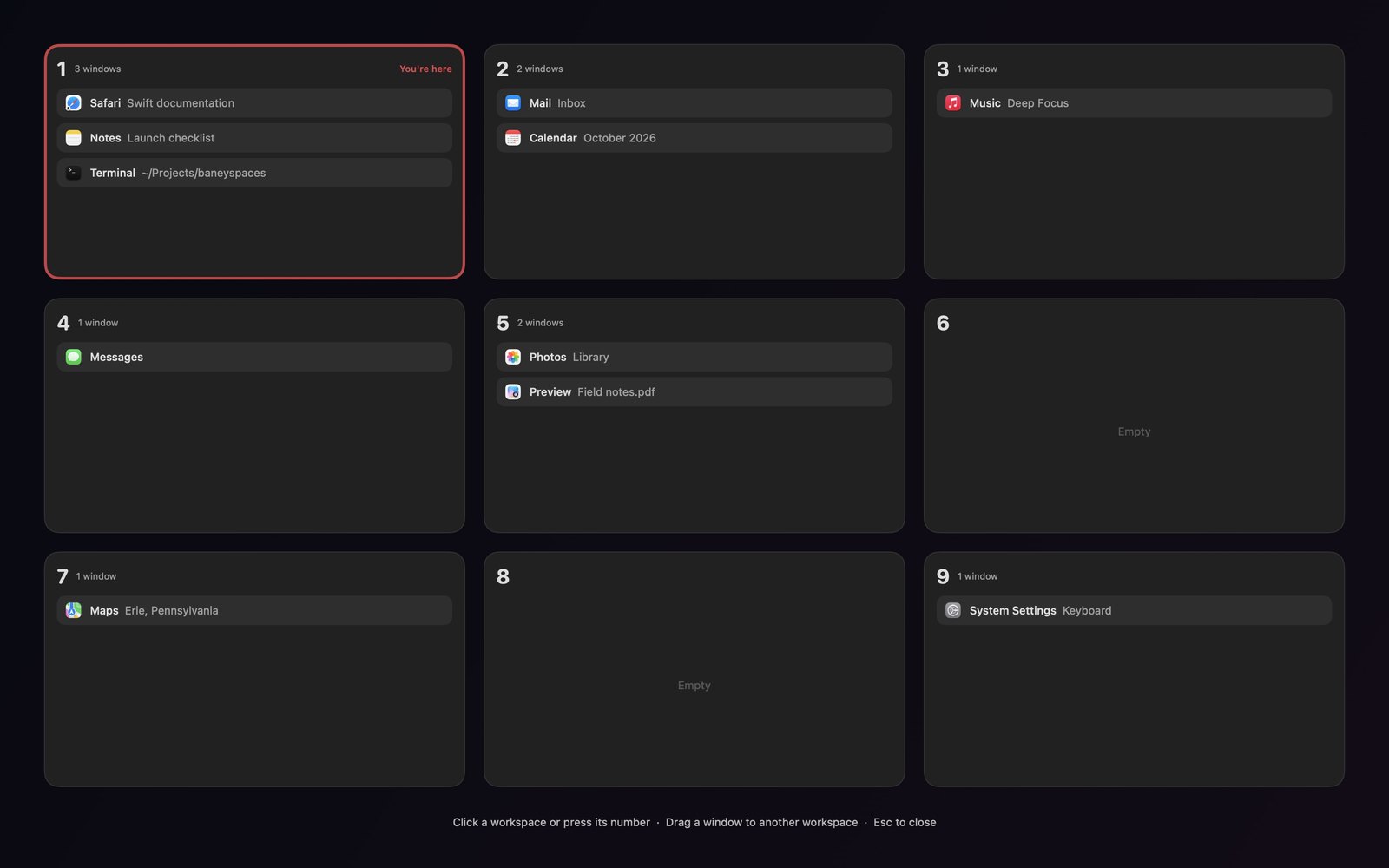
Press the Mission Control key or ⌃ and your whole Mac lays out in the same 3×3 grid as the number keys, with every window's app and title.
Drag and drop
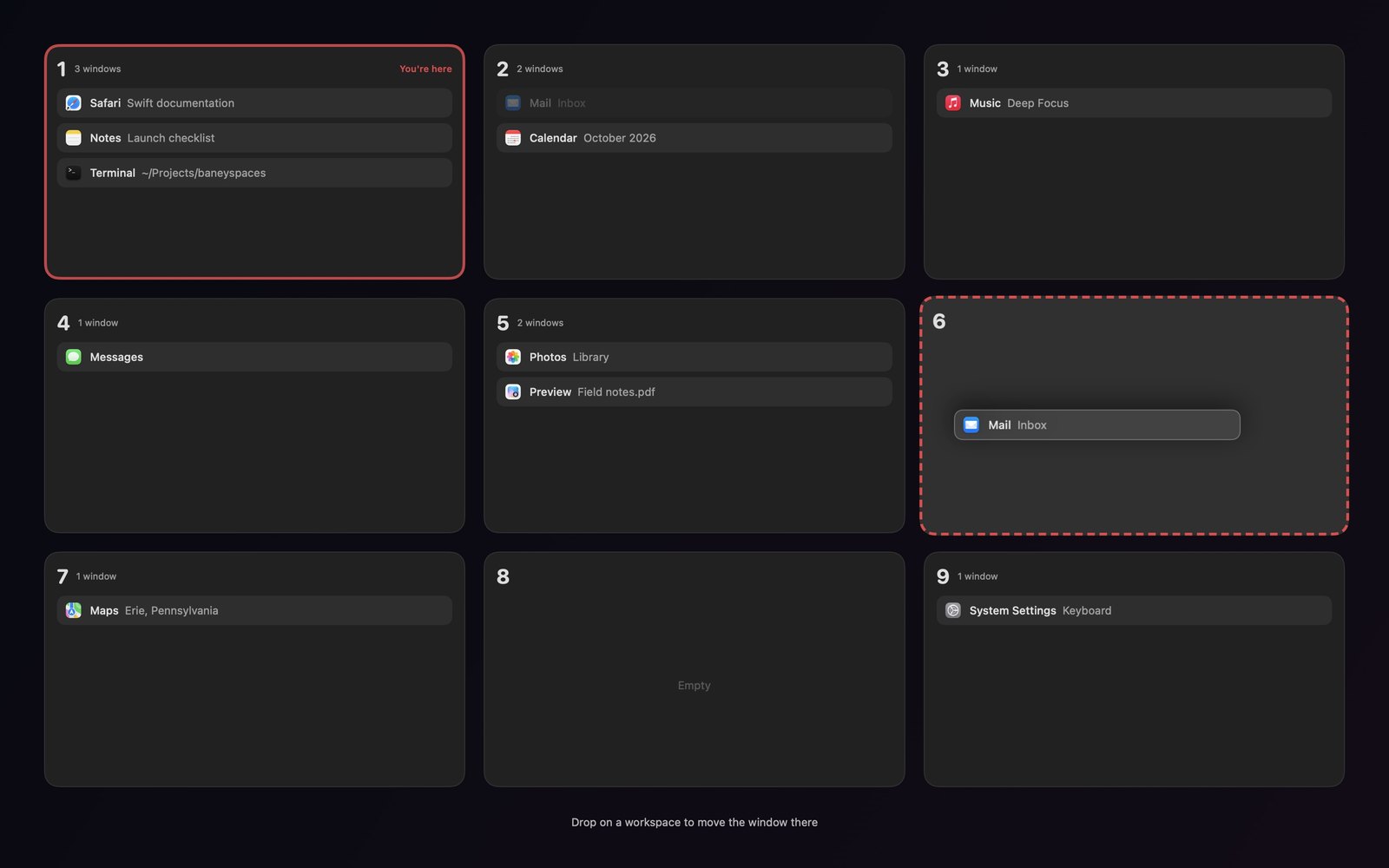
Grab any window in the overview and drop it on another workspace. The card follows your cursor, the destination lights up, and the move happens the moment you let go.
The Deck
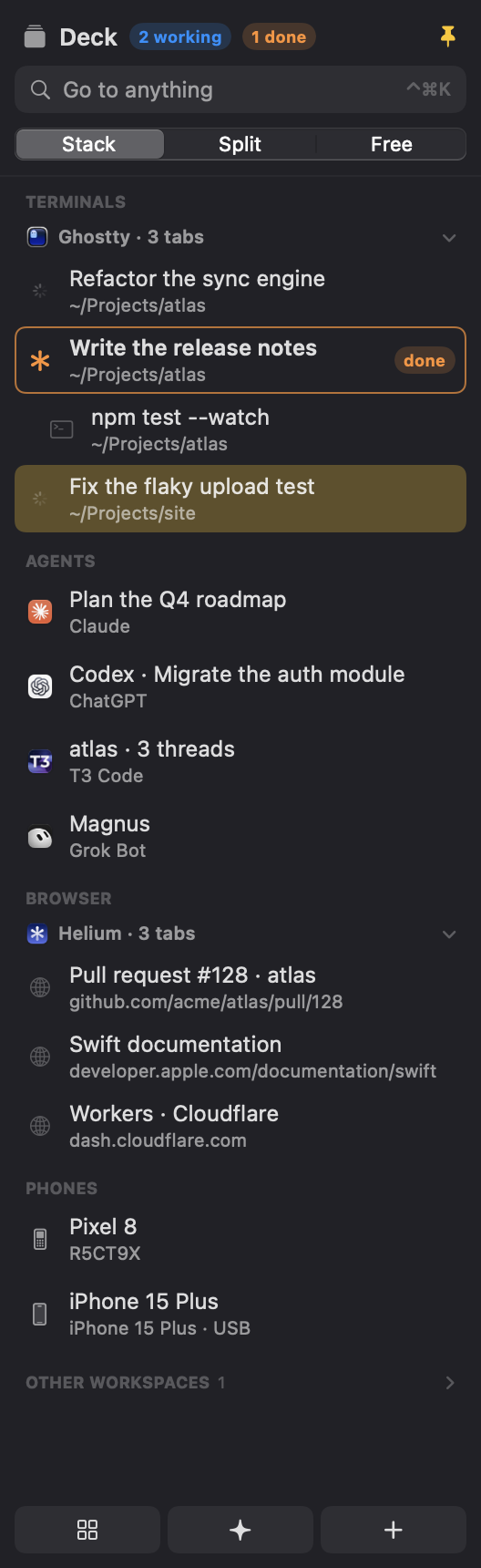
The Deck is a sidebar for the workspace you're on. Ghostty splits, Terminal and iTerm2 sessions, Helium tabs, and the Claude, ChatGPT, T3 Code and Grok Bot windows each get a row with their folder, and a coding agent's row says whether it's working, waiting for you, or done. Press ⌃⌘K to jump to any of them by typing a few letters.
Safety
A window on another workspace is hidden the way ⌘H hides an app. It keeps running, keeps playing audio, and comes back exactly where it was.
Every window's workspace is saved as you work. Restart your Mac, update BaneySpaces, or survive a crash, and each window is back on its workspace.
No account and no analytics. The only network request is an optional daily look at GitHub's public release list, and updates install only when you say so. Sending agent work from another Mac is off until you turn it on, and then it works only over your Tailscale network.
Every line is on GitHub. Read it, build it yourself, or change it to fit how you work.
Install
Paste it into Terminal. The installer builds BaneySpaces on your Mac with Apple's free developer tools, so there's no "unidentified developer" warning.
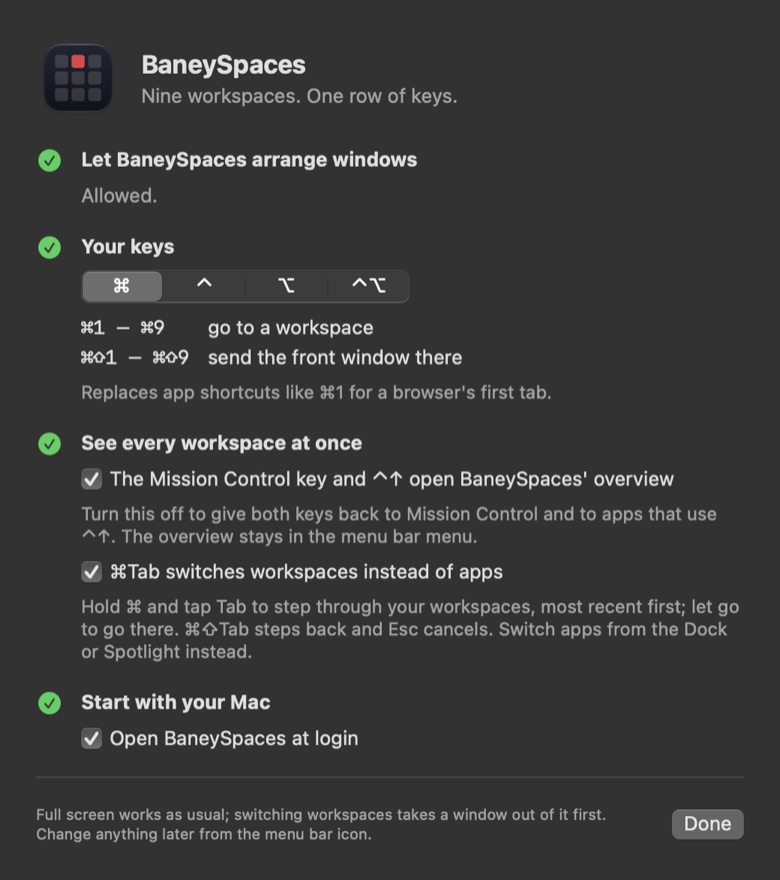
A setup window walks you through macOS's one permission and checks itself off the moment it's granted.
⌘ is the default, and ⌘Tab can switch workspaces too if you turn it on. Prefer to keep ⌘1 for your browser's first tab? Choose ⌃, ⌥ or ⌃⌥ instead. With ⌘, the Free Them button turns off macOS's ⌘3, ⌘4 and ⌘5 screenshot shortcuts so they can move windows; ⌃⌘3 and ⌃⌘4 still take screenshots.
You're in your second workspace. Seven more are waiting.
curl -fsSL https://raw.githubusercontent.com/baney75/baneyspaces/main/install.sh | bashPrefer to read before you run? See exactly what the installer does, or build from source with git clone and make install.
Reference
| Keys | What happens |
|---|---|
| ⌘1 – ⌘9 | Go to that workspace |
| ⌘1 – ⌘9 | Send the front window there and follow it |
| Mission Control key or ⌃ | See all nine workspaces at once |
| Click a window in the overview | Go straight to it |
| Drag a window in the overview | Move it to another workspace |
| ⌘Tab (optional) | Step through your workspaces; let go to switch |
| ⌃⌘K | Jump to any terminal |
| ⌃⌘B | Show or hide the Deck |
| ⌃⌘U | Go to the agent that just finished |
| ⌃⌘[ and ⌃⌘] | Back and forward through the rows you've visited |
Questions
Yes. It's free and open source under the MIT license, with no account, no trial and no paid tier.
Spaces switch with a sliding animation, and moving a window means dragging it through Mission Control. BaneySpaces switches instantly with ⌘1–⌘9, moves the front window with ⌘1–⌘9, and keeps everything on one macOS desktop so no window ends up out of reach.
No. BaneySpaces only does workspaces. It never tiles or resizes windows, so it's a calm alternative if you want AeroSpace-style ⌘1–⌘9 switching without a tiling layout. Because both apps want the same keys, the installer quits AeroSpace and turns off its open-at-login setting. AeroSpace itself stays installed.
No. BaneySpaces uses the standard Accessibility permission that macOS asks you to grant once. SIP stays on.
Any Mac with macOS 13 Ventura or later, on Apple silicon or Intel.
Yes. In setup, choose ⌃, ⌥ or ⌃⌥ as the modifier, and ⌘1–⌘9 keep working in your browser and editor.
Yes. YouTube, slideshows and full-screen apps work as usual. When you press ⌘1–⌘9, the window leaves full screen first and stays on its workspace, so you never land on a macOS desktop the number keys can't reach.
Yes, if you want it to. Turn it on in setup, then hold ⌘ and tap Tab to step through your workspaces, most recent first, and let go to switch. ⌘Tab steps back and Esc cancels. It's off by default, so ⌘Tab keeps switching apps unless you choose otherwise.
Yes. BaneySpaces saves which workspace each window is on as you work, and puts them back after a restart, an update or a crash.
BaneySpaces checks for a new version once a day and shows Update in its menu bar menu when there is one. Nothing installs until you press Update Now, after reading what changed. Choose Stable for tested releases or Nightly for the newest changes, every night something changed, under Updates in the menu.
No. Its only network request is the daily update check, which reads GitHub's public list of releases and sends nothing about your Mac; you can turn it off. It keeps its settings, a record of which windows sit on which workspace, and a local code-signing key that lets macOS remember its permission, all in your Library folder.
Yes. Run `baneyspaces hooks install` once and Claude Code and Grok sessions report to the Deck: their row shows when they're working, waiting for you or done, and a done agent's workspace tile gets a badge. Claude, ChatGPT, T3 Code and Grok Bot windows show up in the Deck either way.
Yes. Turn on the agent workspace with `baneyspaces agent on 9`. Agents and Cua automation work in real apps on workspace 9 while you stay on yours: its apps are parked out of sight instead of hidden, so background clicks still land, and nothing that happens there switches you to it.
Run the uninstaller from the GitHub page. It quits BaneySpaces, which brings every window back, then removes the app and its settings. If you freed the screenshot shortcuts, turn them back on in System Settings › Keyboard › Keyboard Shortcuts › Screenshots.
You already work in one space. BaneySpaces adds eight more, each a single key away.
curl -fsSL https://raw.githubusercontent.com/baney75/baneyspaces/main/install.sh | bash